Editing/Deleting Entries in the UIL Judging Portal
Table of Contents
Deleting an Entry that was Written on the Wrong School
Moving Judges' Comments from one Entry to Another
Editing Judges' Comments Within an Entry
On occasion, a UIL C&SR Judge will accidentally skip over a performing group and write comments on the wrong school.
Up until now, once that entry was submitted, it was permanent, and only Texas Music Forms support could make changes. That is now part of the past!
Deleting an Entry that was Written on the Wrong School
- Open texasmusicforms.com and log in to your Region site.
-
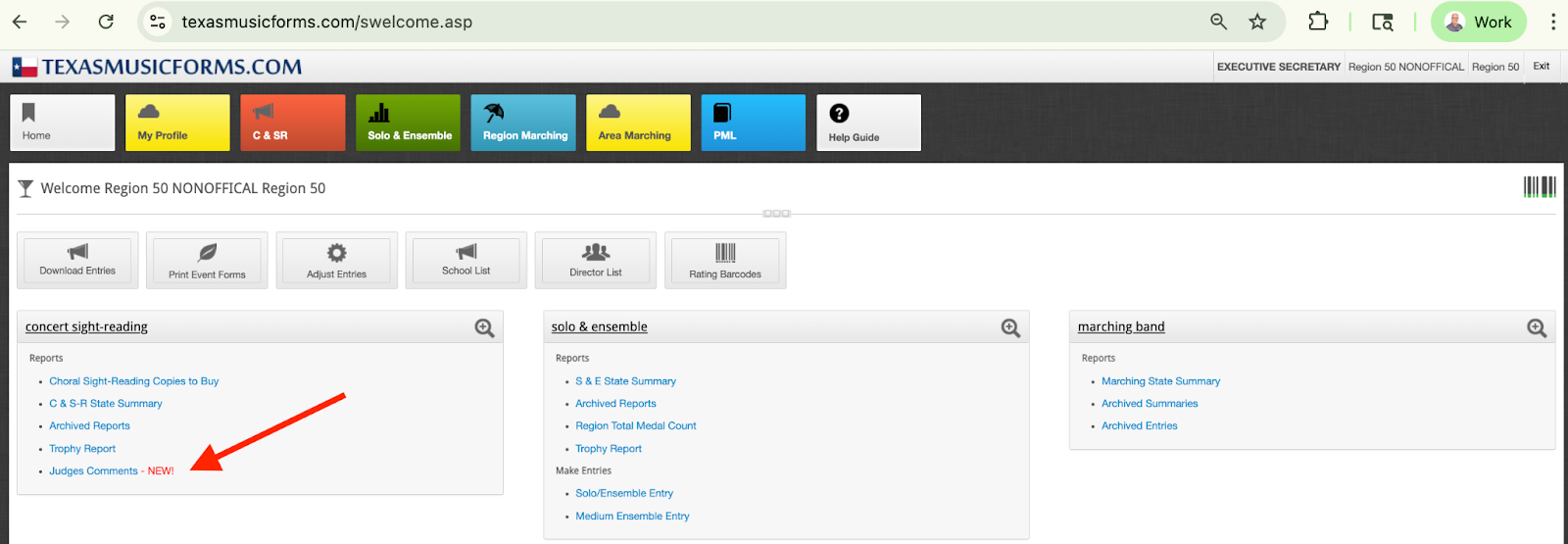
Click on “Judges Comments” in the Concert Sight-Reading Reports box.
-
If you know the entry number for the entry that needs to be moved, type it into the search bar, and it will pull up all of the judges submissions for that entry.

-
Choose the judge that needs to be modified and click on the red "X" to delete.

- Once you click the "X", you will get a warning on the screen. When you are sure you have the correct entry, hit “Delete” and the record will disappear. The judge will now be able to use that entry again.

WARNING: Once you hit "Delete," the information will be gone for good. There is no undo, even from support. If you need the comments to move to another entry, make sure you copy and paste into a document of some sort so you will still have access.
Moving Judges' Comments from one Entry to Another
- Open the texasmusicforms.com and log in to your Region site.
-
Click on “Judges Comments” in the Concert Sight-Reading Reports box.
-
If you know the entry number for the entry that needs to be moved, type it into the search bar, and it will pull up all of the judges' submissions for that entry.
-
Choose the judge that needs to be modified and click on the pencil icon to edit this entry.

-
Click on the box for "Entry Number" and type in the entry number that you need to move the comments to, and then hit "Save" at the bottom of the page.
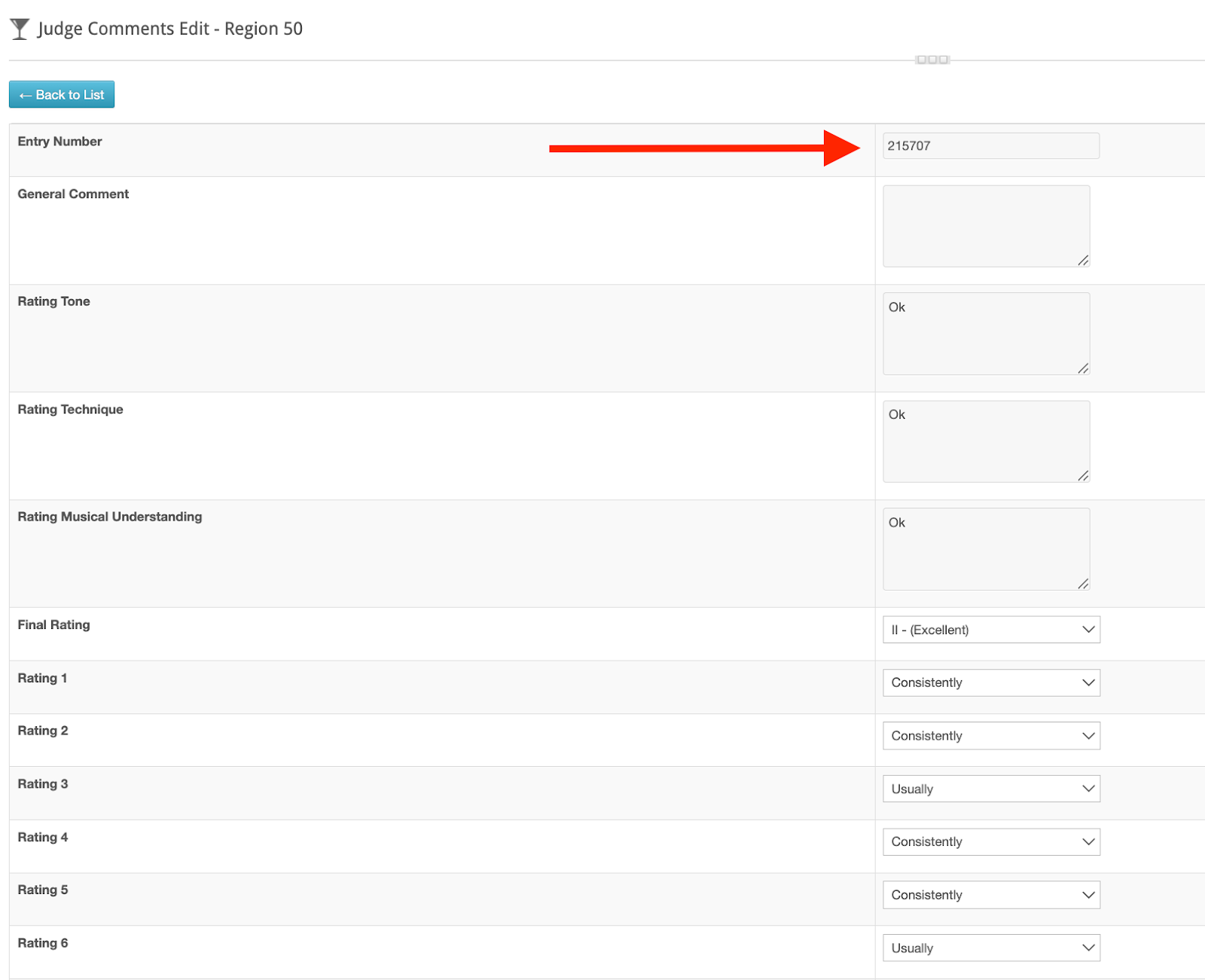
- The comments for the first entry have now been moved into the second entry.
Editing Judges' Comments Within an Entry
- Open the texasmusicforms.com and log in to your Region site.
- Click on “Judges Comments” in the Concert Sight-Reading Reports box.

-
If you know the entry number for the entry that needs to be moved, type it into the search bar, and it will pull up all of the judges' submissions for that entry.
-
Choose the judge that needs to be modified and click on the pencil icon to edit this entry.
- Once opened, you can retype in any of the boxes that are showing on the page, except the one marked "Entry Number." Once you are happy with the wording, click "Save," and whatever was originally in the entry will be replaced with the new edits.

WARNING: Once you hit "Save," the information will be changed for good. There is no undo, even from support.